|
Create Virtual Machine
2010/08/20 |
| Create Virtula Machine on VMware Player. This example shows to install Windows 7. |
|
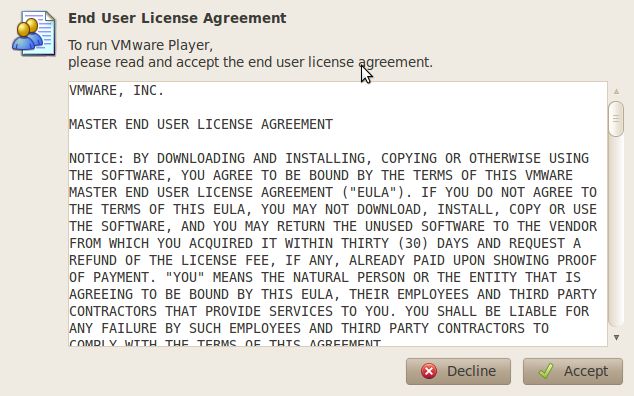
| [1] | Open 'System tools' - 'VMware Player', then following screen is shown. Agree license agreement first. |
|
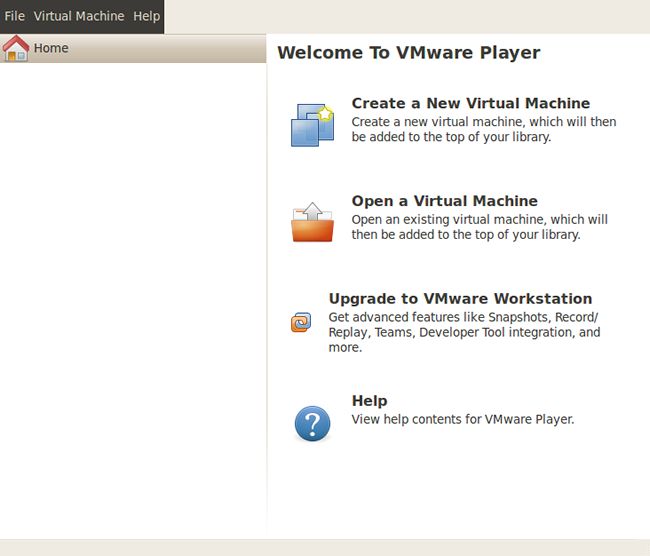
| [2] | Click 'Create a New Virtual machine'. |
|
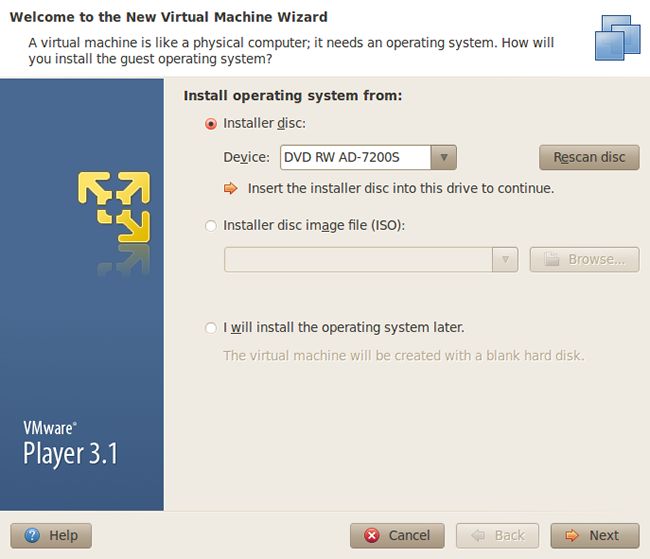
| [3] | Insert installation media and go next. |
|
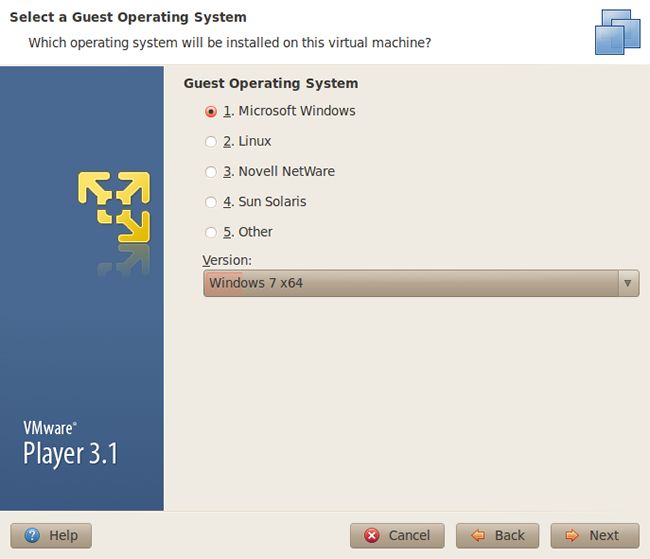
| [4] | Select OS type you install |
|
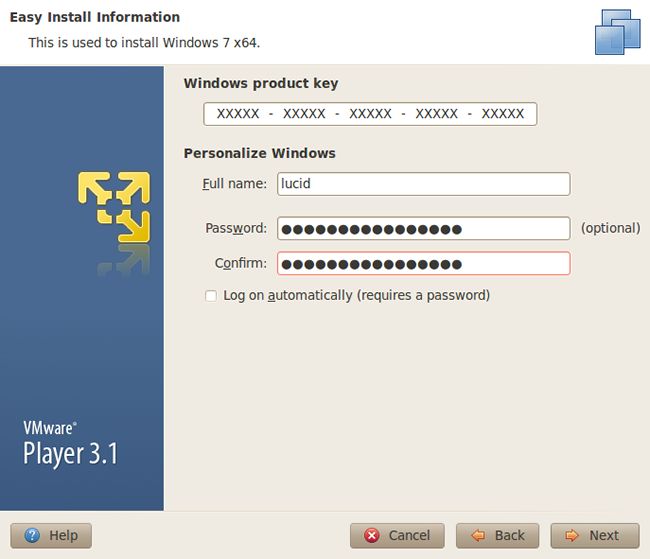
| [5] | Input informations for Windows. |
|
| [6] | Specify the name and location for Virtual Machine. |

|
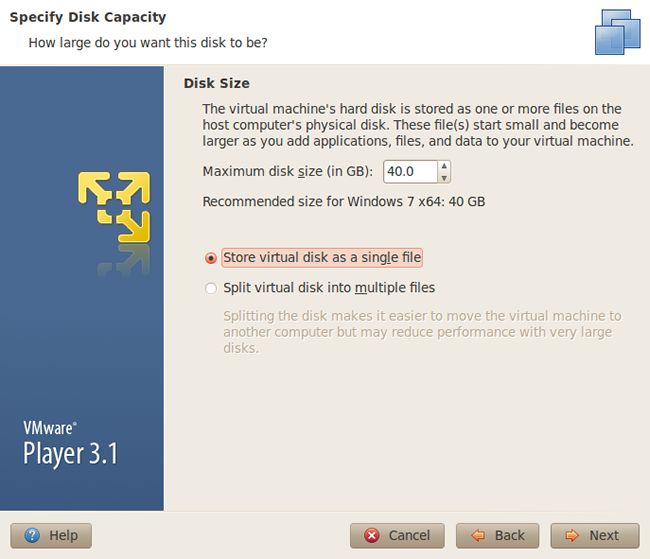
| [7] | Specify disk size. |
|
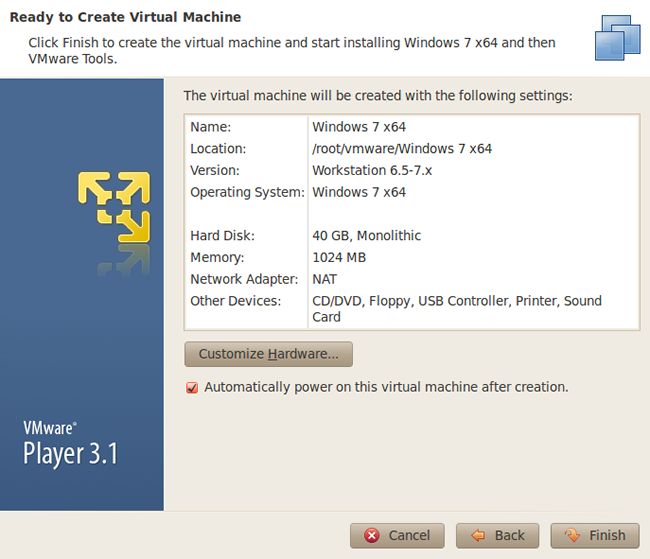
| [8] | Click 'Cistomize Hardware' button. |
|
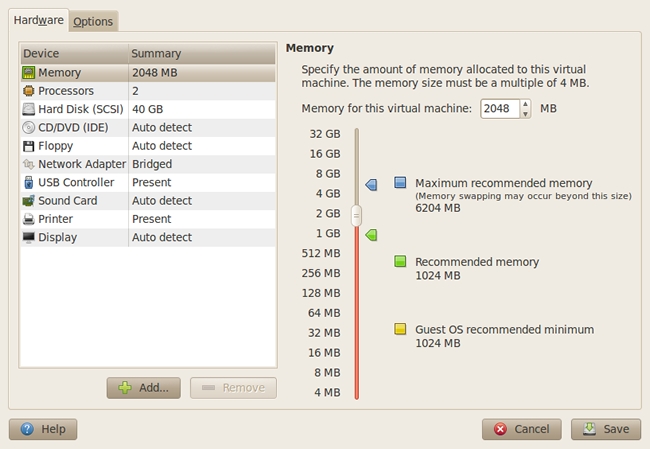
| [9] | Change settings of Virtual Machine on here. It's possible to change number of CPUs, memory size, and so on. |
|
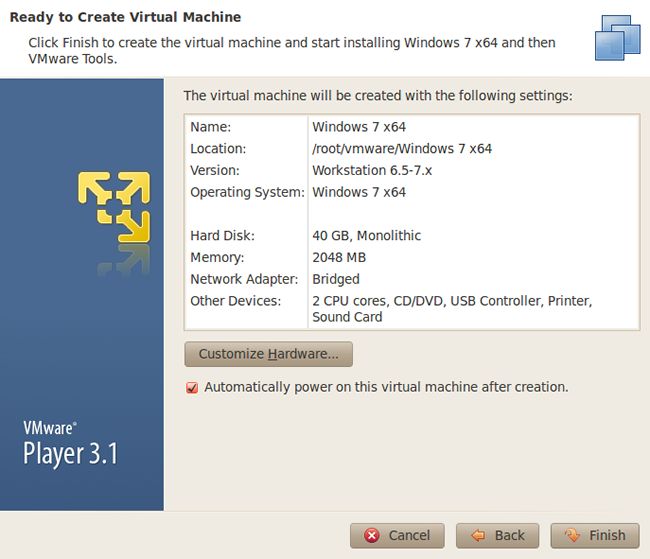
| [10] | Click 'Finish' if it's all OK. |
|
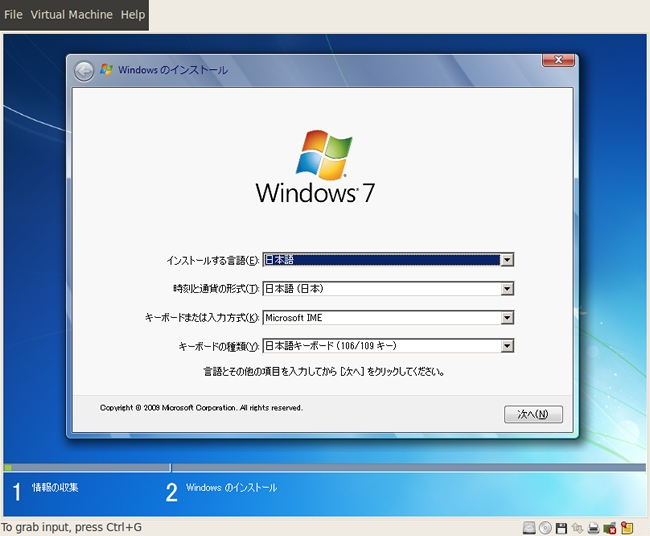
| [11] | Start Virtual Machine and run installer. |
|
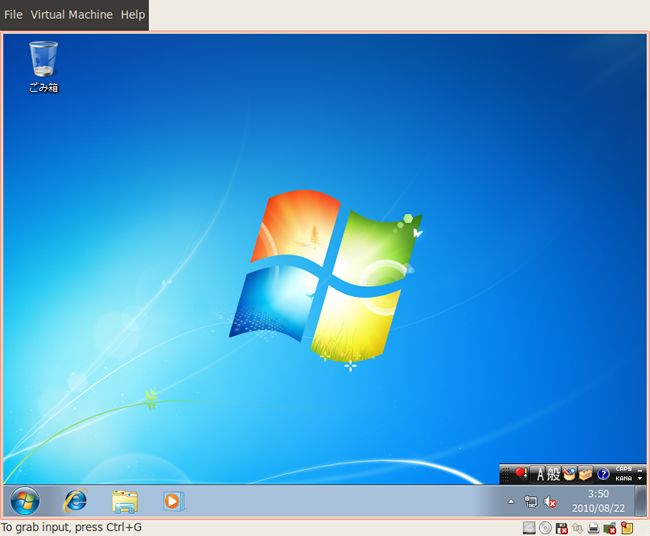
| [12] | Installation completed and Windows 7 is running. |
|